Updated October 16, 2026
8 min read
How to Scan a Document to PDF & Convert to Editable Text
How to Scan a Document to PDF & Convert to Editable Text
- Key takeaways:
- From Paper Scan to Smart Document Analysis
- Two Kinds of Scanned PDFs
- How to Scan a Document to PDF on Windows
- How to Scan to PDF on Mac
- How to Scan Documents to PDF on Your Phone
- How to Make a Scanned PDF Searchable with OCR
- Scanning Settings That Affect OCR Accuracy
- Working with Scanned PDFs in Loio
- Frequently Asked Questions
Content
Key takeaways:
- When scanning a document, you can receive an image PDF (pixels only, no searchable text) or a searchable PDF (an OCR text layer embedded under the image).
- Most built-in tools produce image PDFs by default.
- Setting your scanner to 300 DPI in grayscale produces OCR-ready results without inflating file size.
- Google Drive (Android) and NAPS2 (desktop) produce searchable PDFs for free with no page-count limits. Adobe Scan's free version imposes limitations on the number of pages with OCR treatment per month.
- Once the scan has a searchable text layer, upload it to Loio to review it with AI, annotate the PDF, add fields, and sign or request signatures in the browser.
From Paper Scan to Smart Document Analysis
Most businesses still handle paper documents daily. Precisely speaking, 61% of intelligent document processing pipelines still start with physical paper, and 48% of surveyed organizations expect that volume to grow. Scanning to PDF is a reliable way to turn those documents into a digital format. The scan itself takes under a minute. However, the quality of the result depends on 3 settings you configure before pressing the button.
Reading this guide, you will learn how to scan a document to PDF on Windows, Mac, iPhone, and Android. Besides, there is information on how optical character recognition affects the output, which DPI and compression settings matter, and how Loio can help you manage files after the scan is done. Keep in mind that getting things right from the beginning saves you from serious mistakes later.
Two Kinds of Scanned PDFs
Before picking a tool to scan a document to PDF, decide how you will use the resulting file. Here is a brief overview of 2 common output PDFs.
| Output type | What it contains | Text searchable? | Typical use |
|---|---|---|---|
| Image PDF | Pixel photograph of each page, no text layer | No | Archiving handwritten notes, drawings, or photos |
| Searchable PDF | Pixel image plus an embedded OCR text layer | Yes | Contracts, invoices, receipts, forms – any document you’ll search or edit |
Most built-in scanning tools save image PDFs by default. The file looks like a document, but there’s no text inside it, only pixels. A searchable PDF has an OCR layer that reads the page image and converts it into real text. That’s what makes CMD+F work on a scanned contract and lets document tools extract dates, amounts, and party names without anyone reading the file manually.
Invoices, signed agreements, and financial documents saved as image PDFs are effectively photos of pages. You can open them, but you can’t search inside them, copy text, or route them through contract tools without reading every line yourself. If you want to do anything with the content beyond just viewing it, including stamping a watermark before you share it, you need a searchable PDF.
How to Scan a Document to PDF on Windows
Windows includes two built-in scanning routes. Both let you scan documents in a few clicks, but only one saves directly to PDF.
Windows Scan App (Windows 10 and 11)
The Windows Scan app is the simplest built-in option. It saves multi-page PDF files natively, with no Print to PDF workaround needed.
- Open the Windows Scan app from the Start menu.
- Select your connected scanner from the source dropdown.
- Set the file type to PDF.
- Choose a save folder on your device.
- Place the document on the scanner glass.
- Click “Scan”.
Windows Scan works with any WIA-compatible scanner. It does not run OCR, so the output is an image PDF.
NAPS2
NAPS2 (Not Another PDF Scanner 2) is a free, open-source tool. It runs on Windows, Mac, and Linux, supporting direct PDF export, duplex ADF scanning, optical character recognition in 100 languages, and batch scan-to-folder automation for repetitive tasks. There is no subscription and no per-month page cap on OCR.
To run a scan with OCR in NAPS2:
- Download and open NAPS2.
- Connect your scanner. NAPS2 detects it automatically.
- Open scan settings and enable OCR.
- Select the document's language for better accuracy.
- Click “Scan”. NAPS2 embeds the text layer in the same step.
- Save the scanned file as a PDF.
Windows Fax and Scan
This older built-in tool saves to TIFF or JPEG by default. You need to click “File” > “Print” > “Microsoft Print to PDF” to get a PDF, which works like a basic converter built into the print dialog. It has no OCR, so it is better to use this method only if the other two options are unavailable on your device.
How to Scan to PDF on Mac
Mac offers 2 tools for scanning documents to PDF, with slightly different handling of multi-page files.
Image Capture
Image Capture is a user-friendly option. It gives you direct access to any connected scanner.
- Connect your scanner and open Image Capture from the Applications folder.
- Select the scanner in the left panel.
- Set the Format dropdown to PDF.
- Click “Scan”.
- For multi-page documents, scan each page individually.
- Open all resulting PDF files in Preview and go to “File” > “Combine PDF” Pages to merge them into one file.
Alternatively, enable "Combine into single document" in Image Capture if your scanner driver offers it. Image Capture does not run OCR. The output is an image PDF.
Preview
Preview handles multi-page merging in a single pass, which makes it simpler for documents with several pages.
- Open Preview from the Applications folder.
- Go to “File” > “Import from Scanner”.
- Set the Format to PDF.
- Check "Combine into single document."
- Click “Scan”.
- Go to “File” > “Save” and choose a destination folder.
Like Image Capture, Preview does not embed a text layer. Both Mac tools produce image PDFs. If you need to sign a document digitally, make sure it’s a searchable PDF first. Run it through a desktop OCR tool after scanning, before you send it to others.
How to Scan Documents to PDF on Your Phone
Phone cameras produce clean results for standard documents in good lighting. Both major platforms have a built-in scanning option that requires no installation. If your camera doesn't line up the page correctly, a quick search on YouTube usually turns up a model-specific demo worth a watch before you start.
iPhone: Apple Notes
- Open Apple Notes and create a new note.
- Tap the camera icon and select "Scan Documents."
- Hold the phone over the page. The camera detects the edges automatically.
- Adjust the crop corners if needed.
- Tap “Keep Scan”, then repeat for additional pages.
- Tap “Save”.
- Export the PDF via the Files app or AirDrop to send or share it.
Apple Notes produces an image PDF. iOS Live Text makes text selectable within Notes, but the exported PDF typically does not carry a text layer readable by other apps. To receive a searchable output, run the saved file through NAPS2 or another OCR tool after export.
Android: Google Drive
Google Drive is the simplest option on Android. It runs OCR automatically and saves a searchable PDF directly to your cloud storage.
- Open Google Drive and tap the + icon.
- Select “Scan”.
- Point your camera at the document.
- Capture it. Google Drive processes the image in seconds.
- Tap the checkmark to confirm.
- Add more pages if needed, then tap “Save”. Google Drive stitches pages into a single PDF automatically.
The scanned file goes straight to your Drive folder. You can access it anytime you want.
If the scan is already in Google Drive, you can import the PDF directly into Loio instead of downloading and uploading it again.
Real Android users on Reddit ranked Files by Google and Google Drive above Adobe Scan, citing ease of use and the fact that both come pre-installed.
Open the searchable PDF in Loio's PDF editor to annotate it, add fields, summarize key terms and risk flags, and sign or request signatures directly in your browser.
How to Make a Scanned PDF Searchable with OCR
Optical character recognition (OCR) reads the pixel data in a scanned image and assigns characters to each shape it identifies. Thus, you get a text layer embedded inside the PDF. It is invisible on the visual page but fully accessible to search, copy, and document processing tools. OCR turns a flat scanned file into a document you can search and work with.
Running OCR on an Existing Image PDF
If you have a saved image PDF without a text layer, you can add OCR later.
Using NAPS2:
- Open NAPS2 and import the image PDF.
- Go to scan settings and enable OCR.
- Select the document language.
- Re-export the file as a PDF. NAPS2 adds the text layer on export.
Using Adobe Acrobat Pro:
- Open the file in Acrobat.
- Go to “Tools” > “Scan & OCR” > “Recognize Text.”
- Run the pass on all pages.
- Save the file.
Acrobat flags low-confidence characters with a pink highlight so you can check accuracy on difficult scans. If you want a step-by-step breakdown for each tool, the guide on how to make a PDF searchable covers the full OCR process.
Verifying OCR Completed Correctly
After running OCR, confirm the text layer is present before filing or sharing the document:
- Click inside the document in your PDF viewer.
- Try to select and copy a word from the page.
- Paste it into a text editor. Readable text means OCR ran correctly.
- If you get nothing or garbled characters, the resolution was too low, or the page was skewed.
- Rescan the original at 300 DPI with the document flat, then re-run OCR.
Adobe Scan advertises free OCR but doesn't prominently disclose its page limit. Users noted that the app reduced the number of pages eligible for free OCR in recent updates without clear notice. If you want to have OCR with no monthly caps, opt for NAPS2 on desktop and Google Drive on Android.
Scanning Settings That Affect OCR Accuracy
These settings determine whether OCR runs cleanly when you scan a document to PDF or produces errors you have to fix manually.
| Setting | Recommended value | Why it matters |
|---|---|---|
| DPI | 300 DPI for standard text; 400–600 DPI for small print or footnotes | Below 300 DPI, character shapes blur and recognition error rates rise |
| Color mode | Grayscale for text documents; color only when color conveys meaning | Color increases file size with no OCR benefit on black-on-white text |
| Compression | Low compression for OCR input; medium for long-term archives | Heavy JPEG compression introduces artifacts that confuse character recognition |
A 300 DPI grayscale scan of one text page typically produces a PDF of 50–300 KB. It is easy to send by email or upload to cloud storage. The same page at 600 DPI in full color can reach 5–10 MB with no improvement in OCR output for clean printed text.
For HR documents like signed offer letters and other professional onboarding forms, 300 DPI grayscale is accurate enough for OCR and small enough to send without additional compression, while still meeting basic security expectations for sensitive paperwork. Match the settings to the document's actual content and downstream use, rather than defaulting to the highest values available.
Working with Scanned PDFs in Loio
Once OCR has made your scanned PDF searchable, you can upload it to Loio for further work. Loio’s AI Summary helps you review agreements by highlighting key dates, financial terms, important clauses, and potential risk flags. You can also annotate the PDF, add fields, sign it, or request signatures — all in your browser.
If your scan contains only images, run OCR first so Loio’s AI can read the document text.
Based on McKinsey research, knowledge workers spend roughly 20% of their workweek searching for internal information, and searchable records can reduce that search burden by as much as 35%. Producing searchable PDF files at the point of scanning, rather than archiving flat image files, leads to better time management. Loio handles the review and extraction step once the document is retrievable.
Frequently Asked Questions
What is the difference between an image PDF and a searchable PDF
An image PDF stores each page as a photograph. You can't find specific words, select, copy, or modify text from it. The content is pixels. A searchable PDF adds an OCR text layer under the image, making the text accessible to search tools and document processing software. Most built-in scanning apps produce image PDFs by default. OCR turns a stored image into a retrievable file.
How do I combine multiple pages into one scanned PDF?
On Windows, the Windows Scan app saves multi-page PDF files natively. On Mac, enable "Combine into single document" in Preview or Image Capture before scanning, or use File > Combine PDF Pages in Preview after the fact. On Android, Google Drive stitches multiple captures into one PDF automatically. On iPhone, tap “Keep Scan” after each page in Apple Notes before tapping Save. All pages export together as a single file. Most apps also let you reorder pages before saving the final doc.
Can I scan to PDF without a dedicated scanner?
Yes. Your phone works for most standard documents in good light. Apple Notes on iPhone and Google Drive on Android produce clean PDF files for one-off scanning needs. For bulk scanning or workflows that depend on OCR accuracy, use a flatbed or ADF scanner at 300 DPI. It produces more consistent results than photos taken in variable lighting.
Does optical character recognition work on handwritten text?
Standard OCR engines are optimized for printed characters, and accuracy on handwriting is significantly lower. Handwriting recognition is a distinct capability available in some AI tools but is not reliable enough for documents where accuracy matters. Scan handwritten notes as image PDFs and retrieve them by file name and date rather than by text search.
Can Loio review a scanned contract automatically?
Yes, if the scanned PDF has a readable OCR text layer. Loio’s AI Summary can surface the document overview, key dates, financial terms, important clauses, and potential risk flags. If the PDF is image-only, run OCR first.
More guides
October 16
7 min read
What Is OCR (Optical Character Recognition)? How It Works & AI Uses
September 1
7 min read
How to Provide Proof of Employment: Documents and Steps
October 16
7 min read
How to Redact a PDF Safely: Step-by-Step Data Protection Guide
October 15
How to Start a Staffing Agency: Licensing, Pricing, and Cash Flow
September 10
14 min read
How to Protect Your Small Business from Lawsuits
July 25
12 min read
How to Register a Company in the US: What No One Tells You in 2026
One home for your
agreements
Edit PDFs seamlessly
Tweak agreements before signing or sending for signatures. Update details, add or remove clauses, adjust formatting, and redline changes instantly.
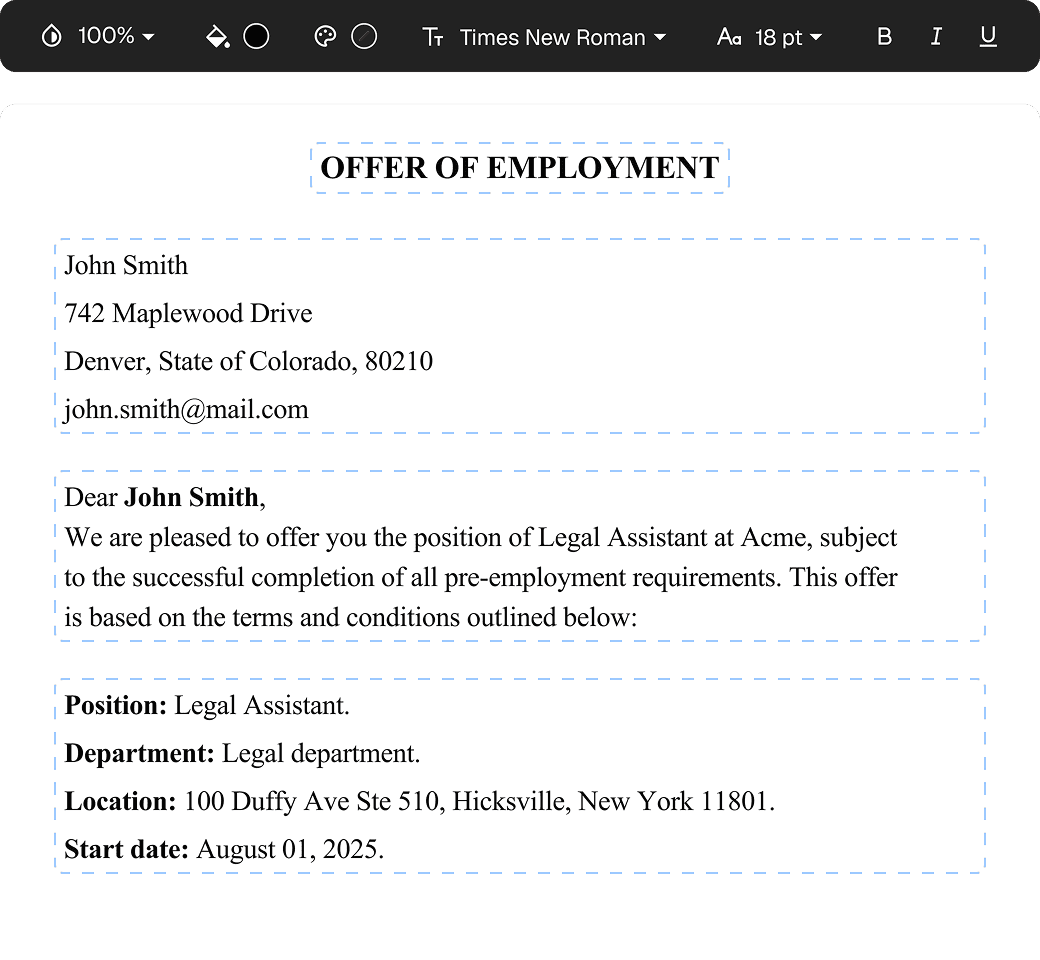
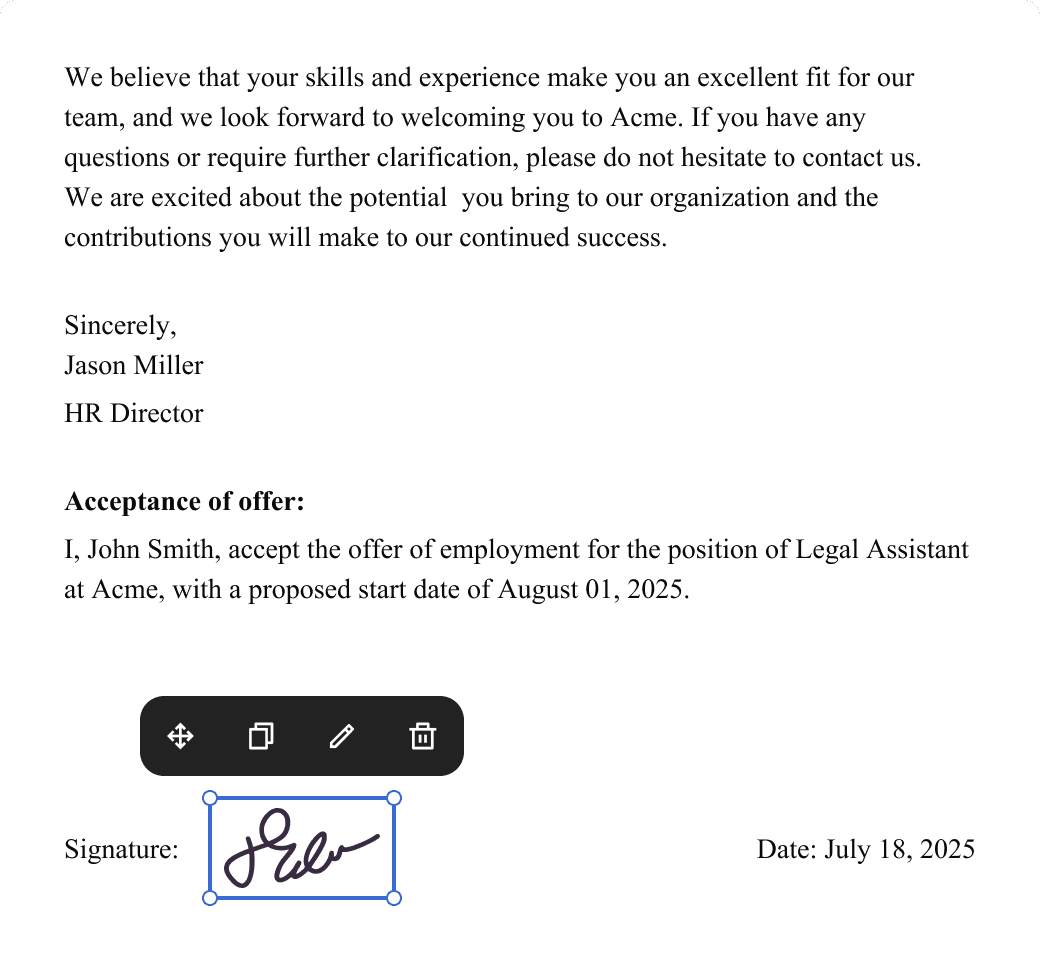
eSign legally and securely
Sign documents and collect legally binding signatures. Invite up to ten people to sign in any order, track the progress, and send reminders.
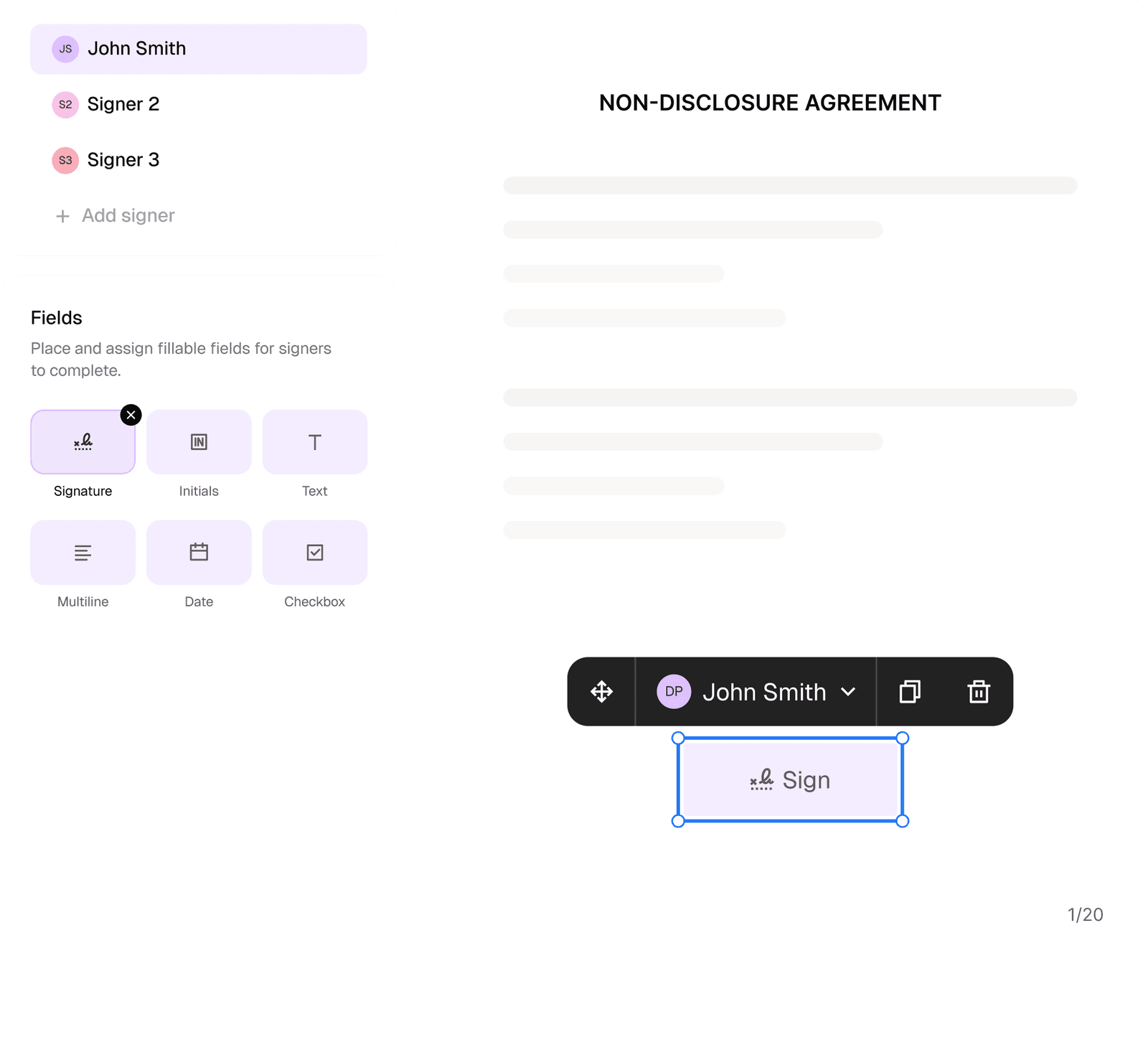
Request legally binding signatures
Invite up to ten people to sign your document in any order. Get a finalized, audit-ready copy without chasing signatures.
Skip the drafting.
Choose from 2,500+ templates
Browse templatesChoose a template
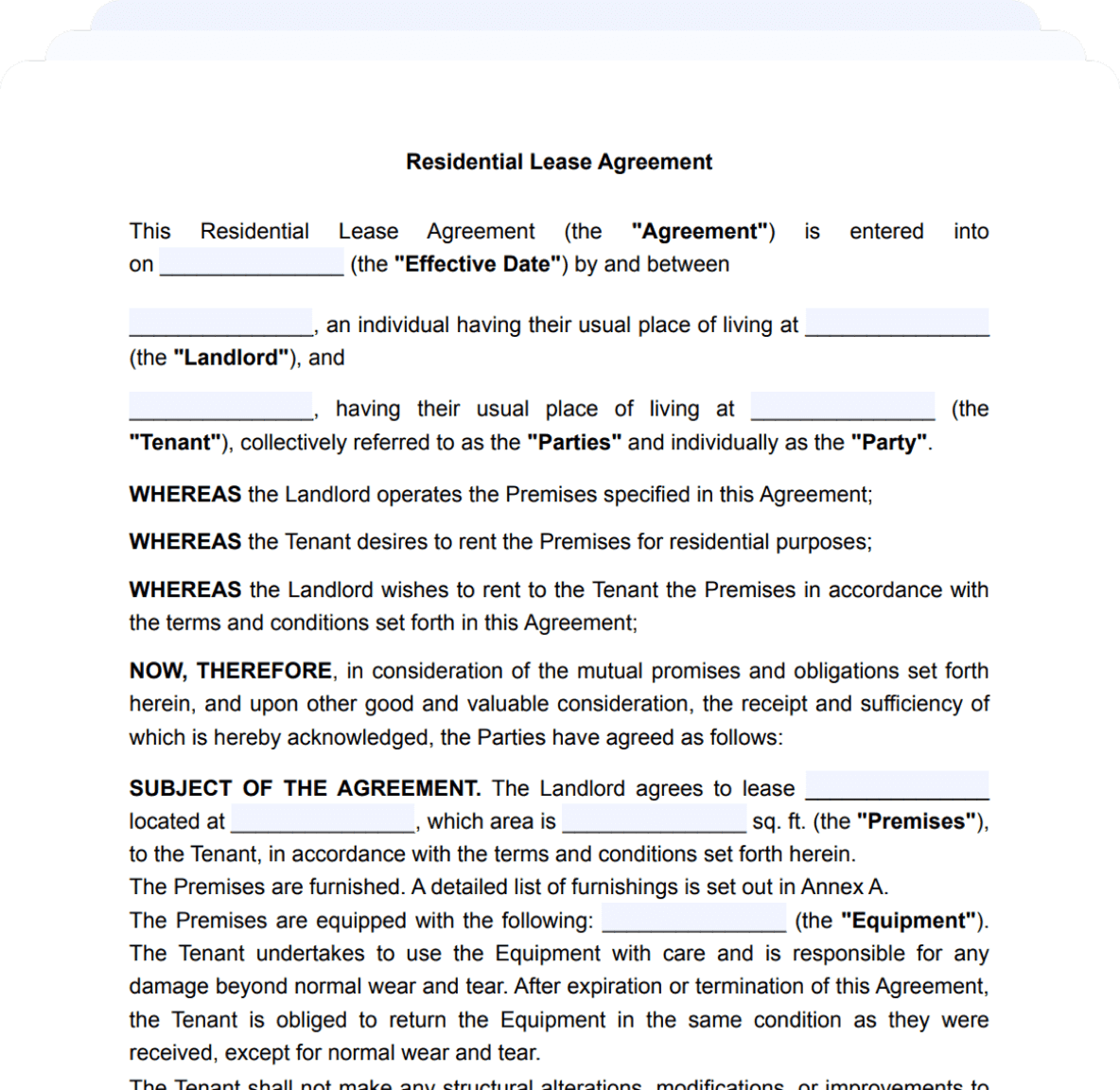
Fill in details
Sign and download