Updated October 16, 2026
7 min read
How to Redact a PDF Safely: Step-by-Step Data Protection Guide
How to Redact a PDF Safely: Step-by-Step Data Protection Guide
Content
Key takeaways:
- PDF redaction means the permanent removal of sensitive information from a file.
- Visual black boxes are not defined as redaction because they only hide data and leave the underlying text fully recoverable.
- Proper redaction requires a tool that deletes the text layer, burns the removal into the page, and strips document metadata.
- After redacting, it is important to double-check the result by copy-pasting the blocked area and running the “Sanitize Document” feature to clear hidden data.
Data breaches cost an average of $4.88 million per incident in 2024. A big part of those exposures involves PDF documents shared with confidential information still accessible underneath what looked like a solid black box.
If you want to figure out how to redact a PDF before sending it to a counterparty, court, or vendor, this guide is worth checking out. It covers the data redaction process in detail, common mistakes along the way, and reliable methods to confirm it worked.
What Does Redacting a PDF Mean and Why Is It Critical?
PDF redaction is the irrecoverable removal of specific content from a document so the information can't be read or recovered. In short, once you permanently redact something, that confidential content is gone for good.
The key word is permanent. Unlike highlighting or annotating, redaction removes the underlying data from the file's code, not just from the visual layer. After true redaction, the deleted content is replaced by a solid block, and the original data no longer exists in the file.
One lawyer described it plainly on Reddit: “I applied a black box once thinking it was foolproof. Turns out OC could copy and paste the underlying text.” Opposing counsel was reading content the filing attorney believed was removed. This is a very serious mistake, so you should never assume a document is secure just because the text looks hidden.
NSA’s Redacting with Confidence guide makes the same point. Black boxes and highlights do not remove digital text. Only a tool that deletes the text layer and replaces it with a burned-in rectangle lets you permanently remove sensitive content.
What Counts as Sensitive Information in a PDF
Before marking anything, review the document to identify what needs to go. The categories below cover most business, legal, and personal documents.
| Category | Examples |
|---|---|
| Personal identifiers | Full name paired with Social Security numbers, date of birth, address, phone numbers, or passport number. |
| Financial data | Bank account numbers, credit card details, salary figures, tax return data, and online banking passwords |
| Medical information | Diagnoses, prescriptions, insurance ID numbers, treatment history |
| Legal communications | Attorney-client correspondence, litigation strategy notes, privileged opinions |
| Business confidential | Trade secrets, unpublished pricing, M&A details, proprietary formulas |
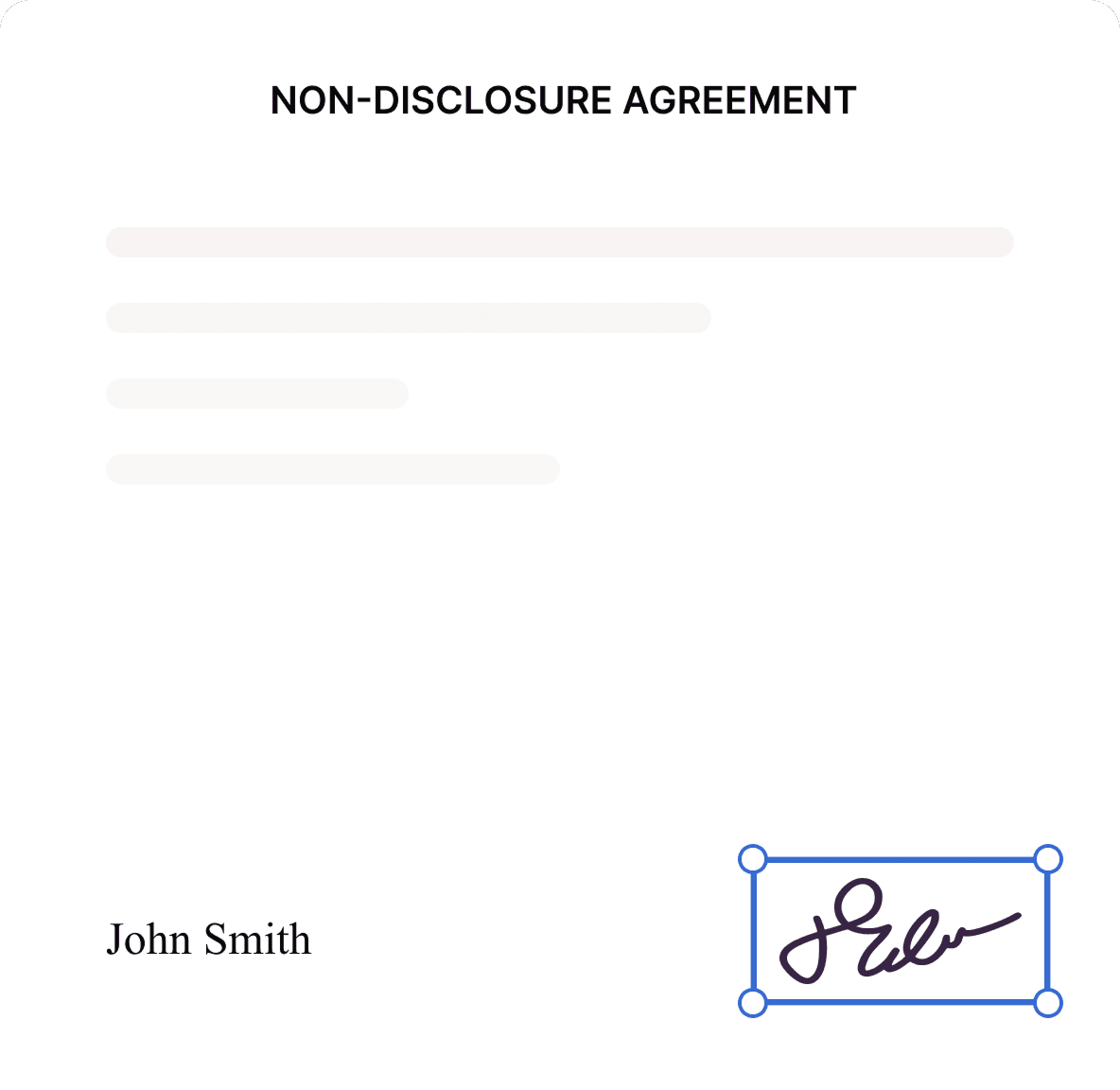
A name alone is usually public. A name paired with a medical record number or SSN counts as private information. If the document is governed by an NDA or confidentiality agreement, the agreement itself defines the scope of what is protected. That is your checklist.
How to Redact a PDF Step by Step
The workflow below applies to most dedicated PDF redaction tools that work offline and online. Just pay attention to the software’s specific labels, but the underlying structure is similar.
Step 1: Open and review the document
Simply upload your PDF file and read the entire pages before marking anything. Headers, footers, metadata fields, and embedded images can carry content that needs to go alongside the main text.
Step 2: Mark content for redaction
Select each piece of sensitive text using the tool’s “Mark for Redaction” function, or click and drag your cursor to redact text and images directly. If the same term shows up throughout the file, use “Search” instead of marking it manually. Do not draw shapes or highlight fills over the content. Those are visual layers, not deletions. The redaction mark flags content for permanent removal.
Before redacting, you can use Loio’s PDF editor to revise the document, add notes, highlight passages, or redline changes. For permanent removal, use a dedicated redaction tool that deletes the underlying content rather than covering it.
Step 3: Apply and sanitize
Review the dialog box that lists everything about to be removed and select “Apply Redactions.” This burns the marks into the page as opaque rectangles and deletes the text beneath them. Then run “Sanitize Document” or “Remove Hidden Information” to strip metadata, comments, form fields, and any cached text. Both steps are required. If you skip the sanitizing stage, the document history will be intact.
Step 4: Save as a new file
Never overwrite the original. Preview the redacted PDF one more time, then download it and save it under a new filename that clearly marks it as redacted, e.g., contract-redacted-2026-10-13.pdf. The original is an audit record, and you may need it for discovery or compliance reviews.
Common PDF Redaction Mistakes to Avoid
Most redaction failures follow one of 5 patterns described below.
| Mistake | Why it fails |
|---|---|
| Drawing a black shape over text | The shape is a separate layer; the text layer underneath is unchanged. |
| Changing text color to white | Text is still present in the file, though it is white. |
| Redacting a scanned page without stripping OCR | Redaction removes image pixels, while OCR-recognized text may remain. |
| Skipping the sanitize step | Metadata, comments, links, and revision history may still contain original content. |
| Overwriting the original file | Keep the original file intact as you may need it later. |
Redaction removes the data, but your agreements define what needs to go. Review your vendor data-sharing rules before sending anything.
How to Check Your PDF Redaction Worked
After exporting the redacted file, run two checks before sending it.
- First, try to select and copy the blacked-out area. If you can paste readable text, the redacted content wasn't fully removed, and the redaction failed. Reopen the source and use a dedicated tool instead of a shape overlay.
- Second, open File > Properties and confirm the Author, Created, and Subject fields contain nothing private. Run “Sanitize” again if any field does.
Redaction handles the technical side. It lets you redact sensitive data and keep private or confidential information out of the wrong hands. To fully protect confidential data, you also need NDAs, access controls, and data-handling agreements in place.
Knowing how to redact a PDF correctly takes five minutes with the right tool and prevents exposures that cost organizations millions to remediate.
Once the redacted PDF has been verified, you can bring the final file into Loio to review it, make any remaining edits, sign it, request signatures, and keep the completed agreement in one workspace. For permanent redaction itself, follow the dedicated redaction workflow described above.
Frequently Asked Questions
Can I redact a scanned PDF?
Yes, but it requires some extra work. A scanned PDF stores each page as an image, not as editable text. Redaction tools that include OCR can identify and mark text within the image, but you need to strip the OCR layer afterward, or the recognized text will be inaccessible. Run an OCR pass first, then mark and apply redactions as normal.
What is contract redlining, and is it the same as redacting?
No. Contract redlining means marking proposed changes to a draft for negotiation, showing what was added or removed. Redaction is permanent deletion of specific content from a finalized document. The two processes serve opposite goals.
If what you need is redlining rather than redaction, Loio’s PDF editor lets you change PDF text and mark proposed edits with highlights, strikeouts, underlines, and annotations.
Does redaction remove digital signatures?
If you redact over a digital signature field, that signature becomes invalid. Do not mark signed areas, and check any remaining signatures once you’ve applied the redactions.
Is PDF redaction legally sufficient for court filings?
Requirements vary by jurisdiction. In US federal courts, FRCP Rule 5.2 specifies which categories must be redacted from public filings. Check the specific court’s local rules before filing. For contracts, Loio’s AI Summary can surface key clauses, dates, financial terms, and potential risk flags before you finalize the file. It does not determine which information must legally be redacted.
Can redacted information be recovered?
If done with a proper redaction tool, no. If someone used a black overlay instead of true redaction, the data may still be accessible through the text layer.
More guides
September 1
7 min read
How to Provide Proof of Employment: Documents and Steps
October 16
7 min read
What Is OCR (Optical Character Recognition)? How It Works & AI Uses
September 10
14 min read
How to Protect Your Small Business from Lawsuits
October 16
8 min read
How to Scan a Document to PDF & Convert to Editable Text
September 24
7 min read
Are Electronic Signatures Legally Binding?
October 15
How to Start a Staffing Agency: Licensing, Pricing, and Cash Flow
One home for your
agreements
Edit PDFs seamlessly
Tweak agreements before signing or sending for signatures. Update details, add or remove clauses, adjust formatting, and redline changes instantly.
eSign legally and securely
Sign documents and collect legally binding signatures. Invite up to ten people to sign in any order, track the progress, and send reminders.
Request legally binding signatures
Invite up to ten people to sign your document in any order. Get a finalized, audit-ready copy without chasing signatures.
Skip the drafting.
Choose from 2,500+ templates
Browse templatesChoose a template
Fill in details
Sign and download